Configuring VoIP Properties
After setting up a VoIP/SIP account through your enterprise’s IT department, use the VoIP page of the GNS Configuration Tester (GnsConfig.exe) to configure and test SIP settings and save them to your Gns.cfg file. Configuring the Gns.cfg file to use SIP as its VoIP protocol allows the GNS to send Voice (text-to-speech) and WAV notifications, and to call into the GNS to acknowledge notifications.
The VoIP page of the GNS Configuration Tester (GnsConfig) defines parameters for the voice messaging keywords used by the GNS and allows users to modify those settings in the GNS configuration file (Gns.cfg). The VoIP page also provides a test feature to connect and interact with the specified SIP server. The GnsConfig also automatically encrypts any username and passwords.
Note: To configure your system to test VoIP in your specific environment, see your vendor-provided documentation.
See the following sections of this topic:
Sample GNSConfig and Gns.cfg
The following is an example of the VoIP page of the GNS Configuration Tester dialog box along with the corresponding Gns.cfg keyword settings:
|
|
|
|
| Click the thumbnail to see the VoIP page of GNS Configuration Tester with the corresponding keywords in the GNS Configuration File |
||
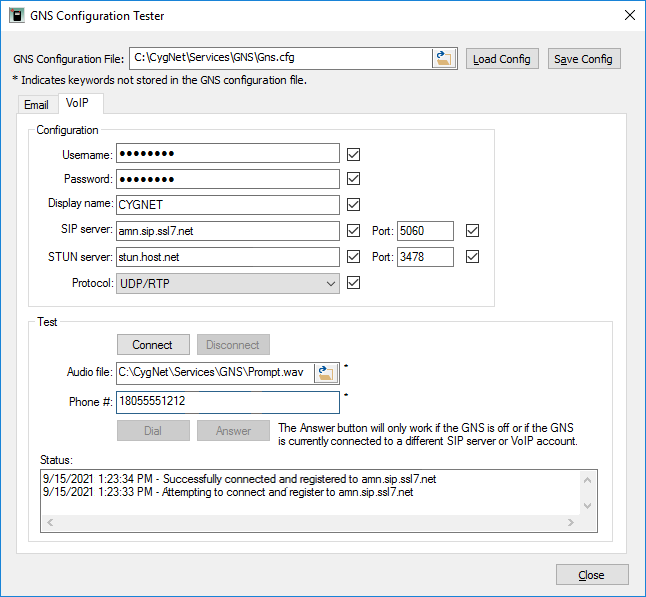
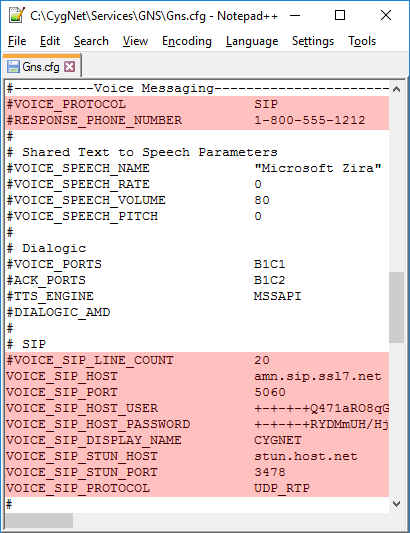
Note: To configure your system to test VoIP in your specific environment, see your vendor-provided documentation.

Configure VoIP Keywords
To Configure and Test the VoIP Properties in the GNS Configuration Tester Utility
- Start the GNS Configuration Tester and when it opens, click the VoIP tab. If this is the first time you have used this utility, the GNS Configuration File box will be empty.
- Type a valid file path to the .cfg file in the box, then click Load Config. If the file path does not contain an existing file, then the Load Config button will be disabled. The relevant parameters from the .cfg file will be loaded into the utility.
-OR- - Click the folder icon to browse to the directory that contains the Gns.cfg file, select the file, and click Open. This will automatically load the relevant parameters from the .cfg file into the utility.
- Type a valid file path to the .cfg file in the box, then click Load Config. If the file path does not contain an existing file, then the Load Config button will be disabled. The relevant parameters from the .cfg file will be loaded into the utility.
- In the Configuration area click the boxes next to the items you want to edit and perform the following, depending on the items you want to change.
- Type a Username — VOICE_SIP_HOST_USER specifies the username used to register to the SIP host (provided by your enterprise’s IT department or VoIP experts). VOICE_SIP_HOST_USER is the dialing phone number. Authentication is required when VOICE_PROTOCOL is set to "SIP".
- Type a Password — VOICE_SIP_HOST_PASSWORD specifies the password for the username used to register to the SIP host. Authentication is required when VOICE_PROTOCOL is set to "SIP". This keyword is encrypted with the common encryption key file if ENCRYPTION_KEY_FILE is enabled. Once encrypted, password keywords for the email server cannot be decrypted.
- Type a Display name — VOICE_SIP_DISPLAY_NAME specifies the display name that optionally may be made available to recipients for identification (e.g., caller ID) purposes. This field is the name that will appear in the caller ID of the callee (may be server-dependent or carrier-dependent).
- Type the SIP server name and its Port number. Note that when VOICE_PROTOCOL is set to "SIP", these fields are required.
VOICE_SIP_HOST specifies the name of the host server providing the SIP connection (provided by your enterprise’s IT department or VoIP experts). Authentication is required when VOICE_PROTOCOL is set to "SIP".
VOICE_SIP_PORT specifies the port used by the SIP host for SIP connections. Authentication is required when VOICE_PROTOCOL is set to "SIP".
- Type the STUN server name and its Port number. These options are only necessary if the client is a NAT client on a network behind a firewall, connecting to a SIP server outside of that network. Your enterprise’s IT department or VoIP experts should be able to provide this information if it is necessary.
VOICE_SIP_STUN_HOST specifies the name of the host server providing STUN services for the SIP connection. Optional.
VOICE_SIP_STUN_PORT specifies the port used by the STUN host for STUN services.
- Select the SIP Protocol type from the drop down menu — VOICE_SIP_PROTOCOL specifies the SIP transport and media transfer protocols used by the SIP host for VoIP communications. The default is UDP_RTP, which means that the SIP client will use UDP for SIP transport and RTP for media transfer.
- In the Test area:
- Click the folder icon next to the Audio file field to select the audio file to be played by the SIP client when a call is placed or answered.
Note: The Audio file option only applies to the GNS Configuration Tester utility. It is not saved to the Gns.cfg file, and will not apply to calls placed to/from the GNS. If the selected audio file sounds distorted or sped up when played over the call, select a PCM WAV file with a higher sample rate.
- Type the phone number to be called in the Phone # field.
Note: The Phone # option only applies to GNS Configuration Tester utility. It is not saved to the Gns.cfg file, and will not apply to calls placed to/from the GNS.
- Click Connect to connect to the specified SIP server and its port.
- Click Disconnect to disconnect from the SIP server and port.
- Click Dial to call the number entered in the Phone # field.
- Click the folder icon next to the Audio file field to select the audio file to be played by the SIP client when a call is placed or answered.
- The Status box displays the date, time, DTMF tones received, and whether the action was successful.
- To test a call-in, dial the phone number of the VoIP account used to connect to the SIP server from a different phone (e.g., a mobile phone or similar). Your enterprise’s IT department or VoIP experts should be able to provide this number. When the GNS Configuration Tester utility detects an incoming call, the Answer button will be enabled. Click Answer to answer the call. The selected Audio file will play.
- When a call-in is established, test DTMF tones by pressing numbers on the keypad. The Status window confirms any DTMF tones received.
- After confirming that testing was successful, click Save Config to write the options to the Gns.cfg file specified in the GNS Configuration File field.
- Click Close to exit the utility.
Note:
VOICE_SIP_LINE_COUNT (VOICE_SIP_LINE_COUNT specifies the number of simultaneous call lines allowed for the SIP client. Valid values include 1 to 2,147,483,647. Required to start the GNS.) also must be configured.
GNS Configuration Tester VoIP Properties
The following table lists the fields on the VoIP page of the GNS Configuration Tester and the corresponding keywords in the Gns.cfg file (when applicable).
| Field | Description | Corresponding Keyword in the Gns.cfg File |
|---|---|---|
|
GNS Configuration File |
The path to the GNS configuration file (Gns.cfg). Click the folder icon to browse to the file on the CygNet host. The relevant parameters from the Gns.cfg file will be loaded into the utility.
Note: Some configuration options on the GnsConfig are not saved to the GNS configuration file. This is indicated with an asterisk next to the option. |
N/A |
| Configuration
Click the check box next to each property to edit this configuration (and change the keyword in the (Gns.cfg). |
||
|
Username |
VOICE_SIP_HOST_USER specifies the username used to register to the SIP host (provided by your enterprise’s IT department or VoIP experts). VOICE_SIP_HOST_USER is the dialing phone number. Authentication is required when VOICE_PROTOCOL is set to "SIP". This keyword is encrypted with the common encryption key file if ENCRYPTION_KEY_FILE is enabled. |
VOICE_SIP_HOST_USER |
|
Password |
VOICE_SIP_HOST_PASSWORD specifies the password for the username used to register to the SIP host. Authentication is required when VOICE_PROTOCOL is set to "SIP". This keyword is encrypted with the common encryption key file if ENCRYPTION_KEY_FILE is enabled. Once encrypted, password keywords for the email server cannot be decrypted. |
VOICE_SIP_HOST_PASSWORD |
|
Display name |
VOICE_SIP_DISPLAY_NAME specifies the display name that optionally may be made available to recipients for identification (e.g., caller ID) purposes. This field is the name that will appear in the caller ID of the callee (may be server-dependent or carrier-dependent). |
VOICE_SIP_DISPLAY_NAME |
|
SIP server |
VOICE_SIP_HOST specifies the name of the host server providing the SIP connection (provided by your enterprise’s IT department or VoIP experts). Authentication is required when VOICE_PROTOCOL is set to "SIP". |
VOICE_SIP_HOST |
|
Port |
VOICE_SIP_PORT specifies the port used by the SIP host for SIP connections. Authentication is required when VOICE_PROTOCOL is set to "SIP". |
VOICE_SIP_PORT |
|
STUN server |
VOICE_SIP_STUN_HOST specifies the name of the host server providing STUN services for the SIP connection. Optional. |
VOICE_SIP_STUN_HOST |
|
Port |
VOICE_SIP_STUN_PORT specifies the port used by the STUN host for STUN services. |
VOICE_SIP_STUN_PORT |
|
Protocol |
VOICE_SIP_PROTOCOL specifies the SIP transport and media transfer protocols used by the SIP host for VoIP communications. The default is UDP_RTP, which means that the SIP client will use UDP for SIP transport and RTP for media transfer. Note: "UDP/RTP" is the only available value. |
VOICE_SIP_PROTOCOL |
| Test | ||
|
Connect |
Click Connect to connect to the specified SIP server and its port. |
N/A |
|
Disconnect |
Click Disconnect to disconnect from the SIP server and port. |
N/A |
|
Audio file |
The path to the WAV file played by the SIP client when a call is placed or answered using the GNS Configuration Tester utility. Note: WAV files must be 8000Hz, 16000Hz, 32000Hz, or 48000Hz mono 16-bit PCM format. |
N/A |
|
Phone # |
Specifies the number that is dialed when Dial is clicked. If the phone number of the VoIP account for the connected SIP server/user is called, the Answer button is enabled, allowing a user to answer the call within the utility. |
N/A |
|
Status |
Displays the status of the connection. |
N/A |

